Configure a MySQL connection to Florentine.ai via cPanel
This guide will take you through all the necessary steps needed to connect a MySQL database via phpMyAdmin to Florentine.ai:
- Log in to cPanel
- Create a readonly user
- Grant database access
- Grant network access
- Create the connection string
Important
Your MySQL instance must be running on a remotely accessible server. Florentine.ai is a cloud-based service and cannot connect to localhost or 127.0.0.1.
Log in to cPanel
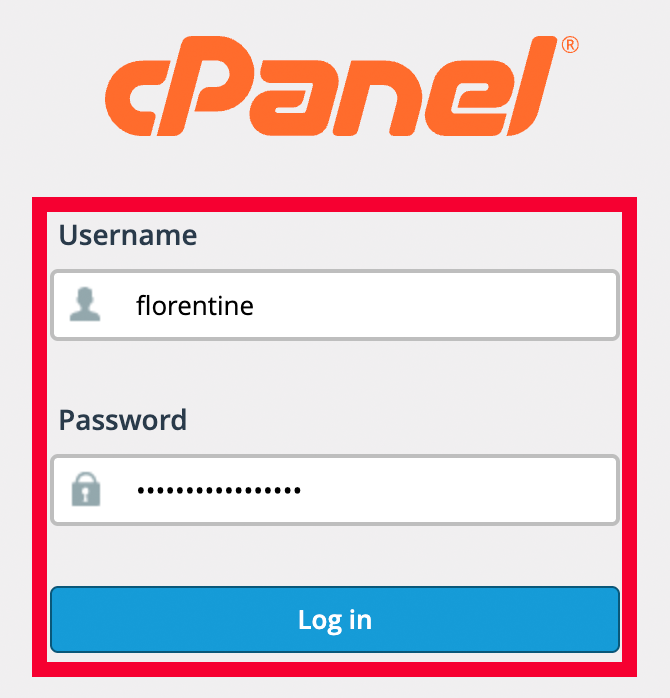
Start by navigating to your cPanel (usually found at https://yourdomain.com:2083) and log in with your root/admin credentials:
Create a readonly user
On the cPanel dashboard, scroll down to the Databases section and click on Manage My Databases:

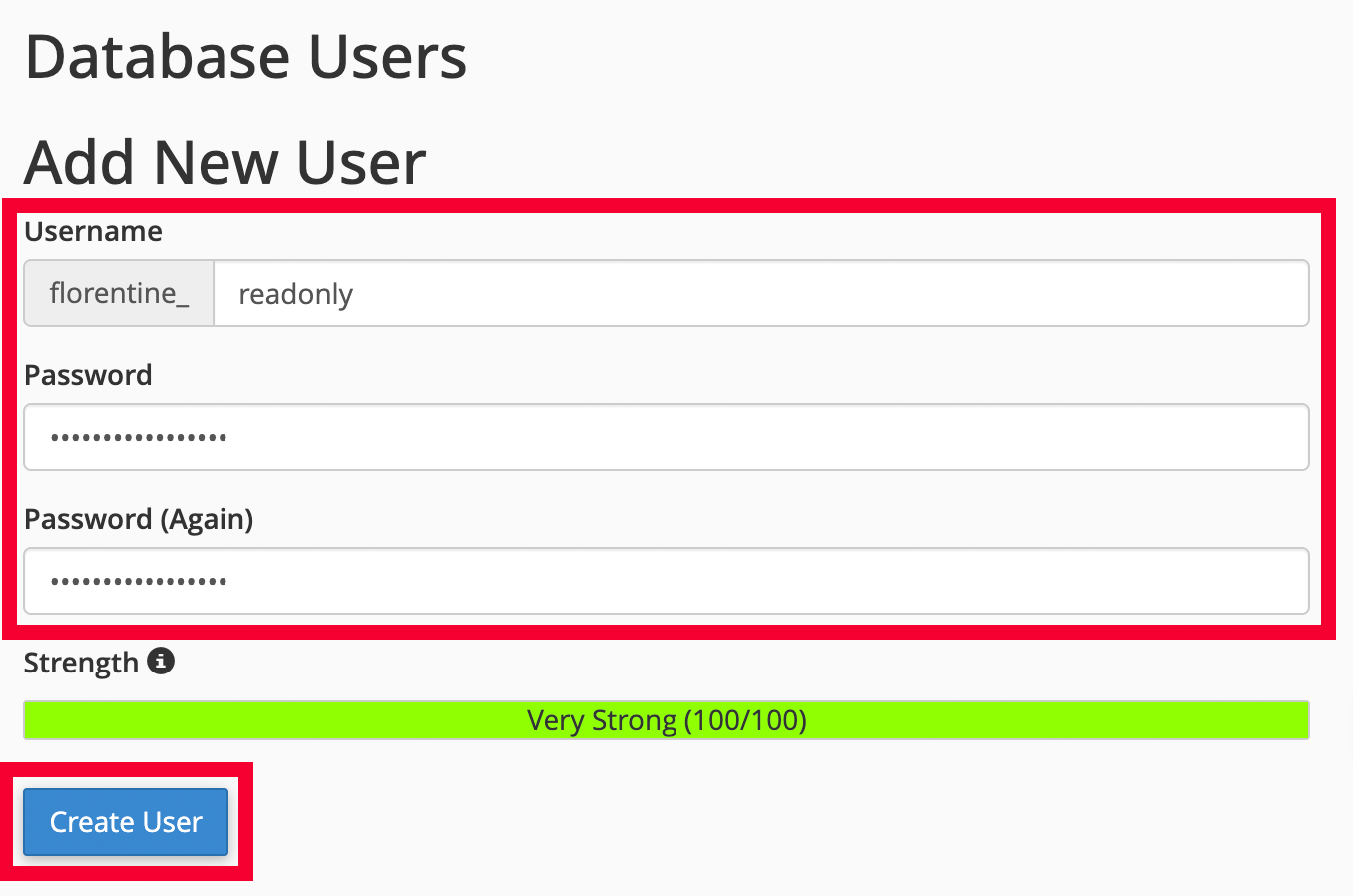
On the Manage My Databases screen, scroll down to the Add New User section, fill in Username and Password and click on Create User:
Grant database access
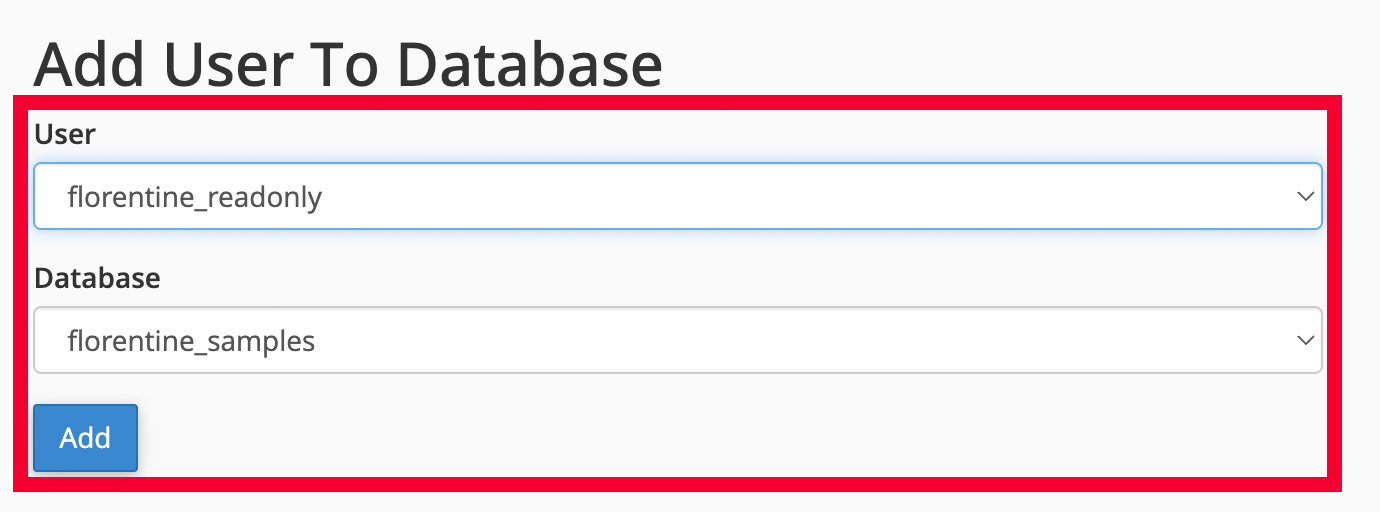
Navigate back to the Manage My Databases scrren and scroll down to the Add User to Database section. Select the user you just created and the database you want to add to Florentine.ai and click on Add:
Grant network access
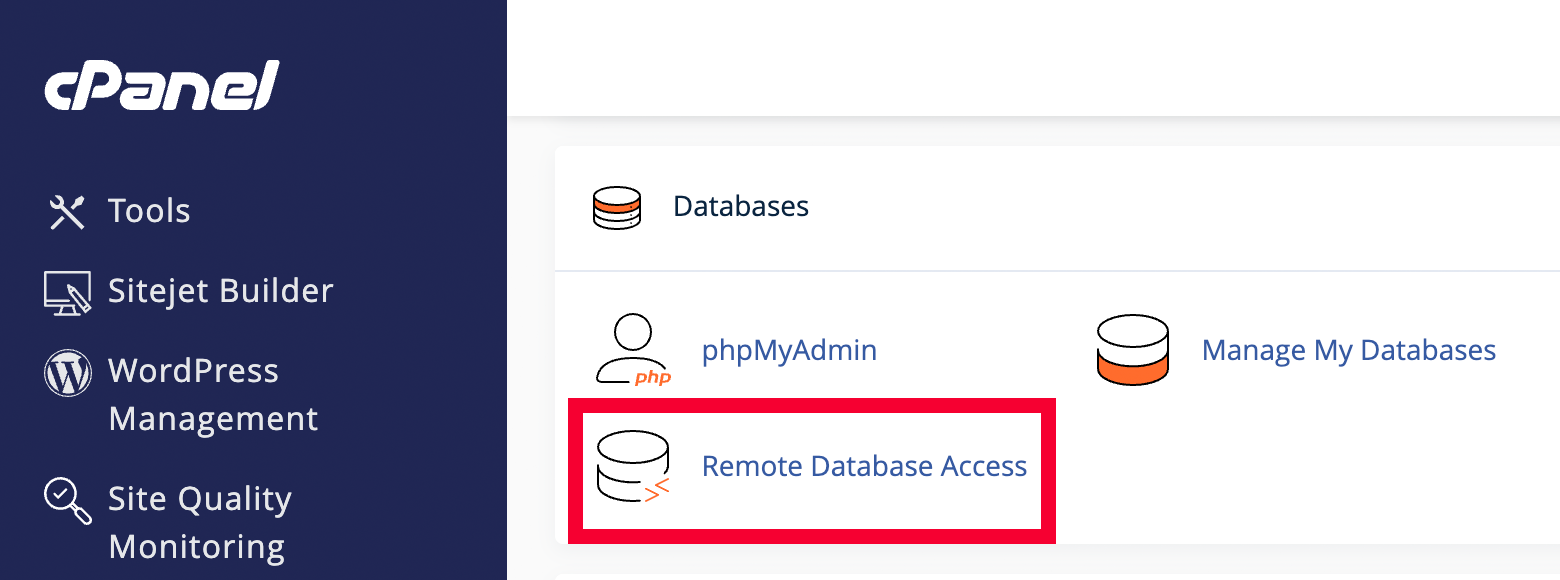
Navigate back to the main dashboard, scroll down to the Databases section and click on Remote Database Access:
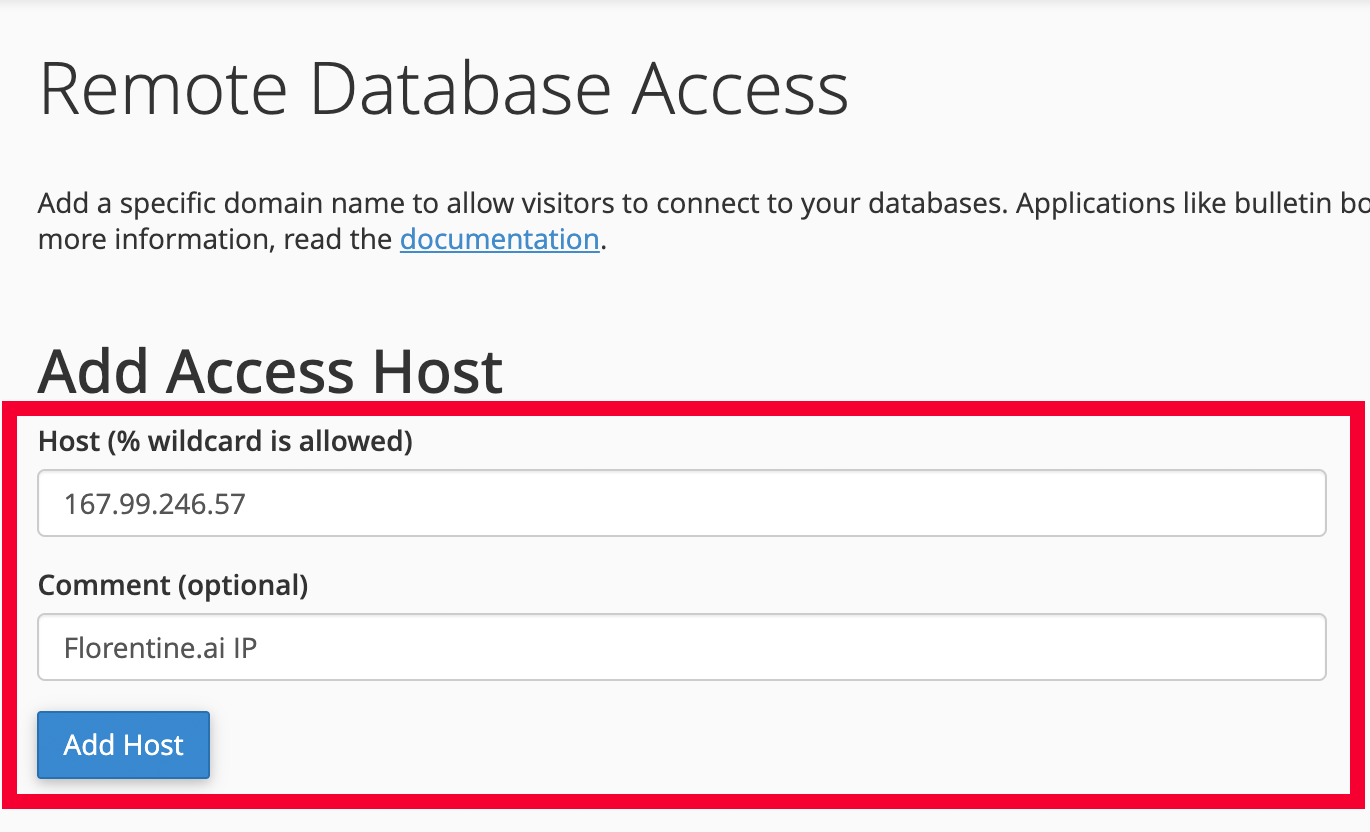
Finally add the Florentine.ai IP 167.99.246.57 as Host, optionally add a comment and click on Add Host:
Important
You need to repeat the process for the second Florentine.ai IP 209.38.238.253.
Create the connection string
You should now be able to create the connection string you need to add in your Florentine.ai account. The structure of the connection string looks like this:
mysql://<db_username>:<db_password>@<domain>:<port>/<db_name>Now you only need to replace <db_username>, <db_password>, <domain>, <port> and <db_name> with your settings, so your final connection string should look comparable to this:
mysql://florentine:supers%40fep%[email protected]:3306/samplesImportant
Your password must be URI encoded, so i.e. if your password is supers@fep@ssword you would provide the password inside the connection string as supers%40fep%40ssword.
Please note
You can usually find your domain and port inside the admin area of your hosting provider.
Enter your final connection string on the connect page in your Florentine.ai account, click on Connect and if everything is configured correctly you should see a list of the tables inside your database.